


The Ultimate Guide to Wiping Your Hard Drive Before It Wipes You Out
Why Your Deleted Files Aren’t Really Gone
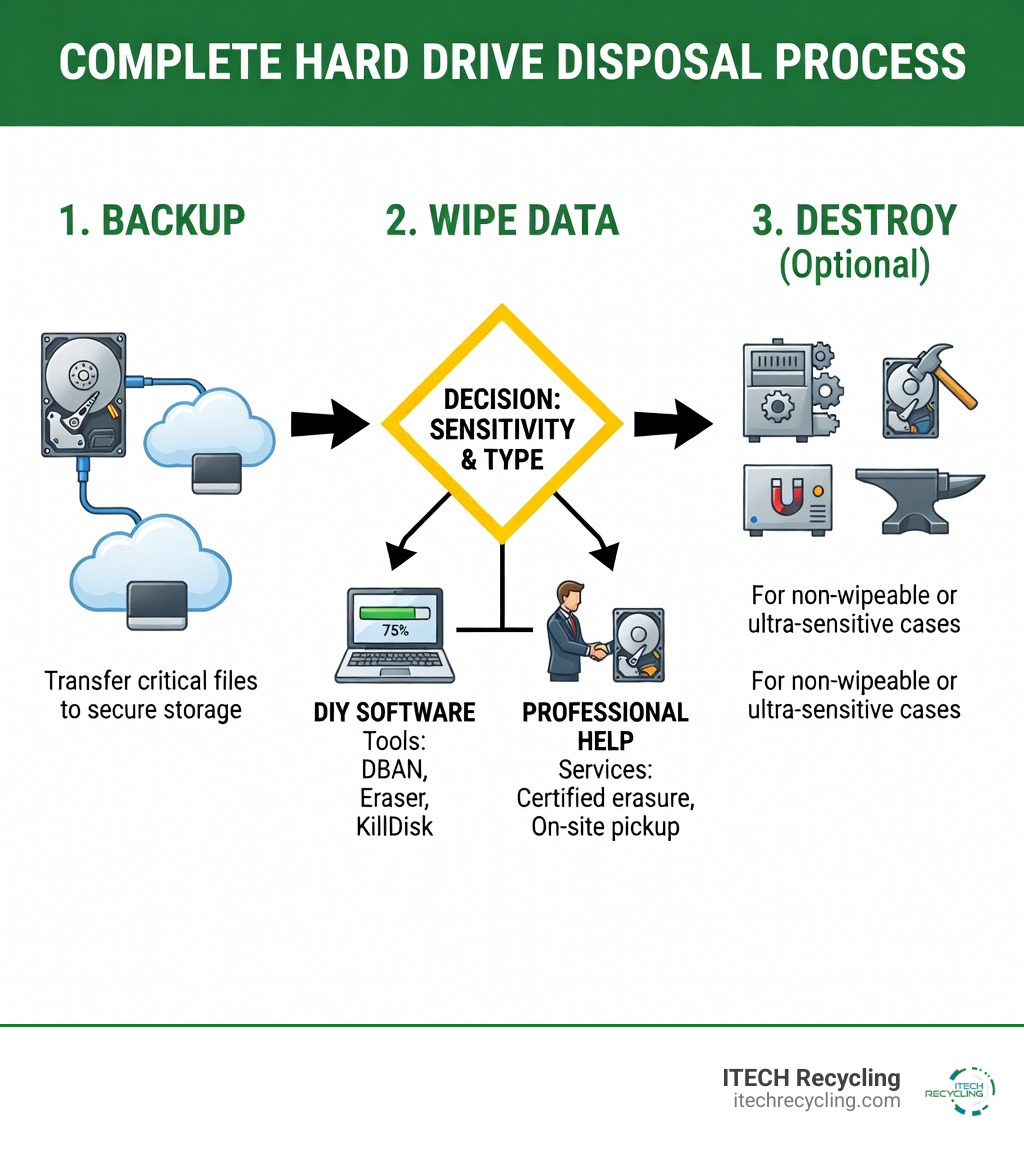
Wiping a hard drive for disposal means permanently erasing all data so it cannot be recovered, going far beyond simply deleting files or formatting. Here’s what you need to know:
Quick Answer: How to Wipe a Hard Drive for Disposal
- Back up important data to an external drive or cloud storage
- Use built-in tools like Windows Reset PC with “Clean data” option enabled
- Choose third-party software like DBAN or Disk Wipe for older drives
- Consider physical destruction for highly sensitive data or non-functional drives
- Verify the wipe before disposal or recycling
Do you have an old computer sitting in your closet that you’ve been afraid to recycle? You’re right to hesitate. Simply deleting files or formatting a drive doesn’t actually remove your data—it just tells your operating system that the space can be reused. Anyone with basic data recovery software can pull up your photos, passwords, financial records, and browsing history from a “wiped” drive.
The stakes are real. A financial services firm paid a $35 million settlement after failing to properly destroy customer data on old hard drives, exposing personal information of 15 million customers. Whether you’re a business disposing of old equipment or an individual selling a laptop, incomplete data removal puts you at risk of identity theft, regulatory violations, and worse.
The good news? Proper hard drive wiping isn’t complicated—you just need to know the right methods. This guide walks you through every step, from understanding why the recycle bin isn’t enough to choosing between software wiping and physical destruction.
I’m Felix Bagr, owner of iTech Recycling, where we’ve helped thousands of businesses and individuals in the Chicago area securely dispose of electronics. Through years of experience in wiping a hard drive for disposal, I’ve seen what works, what doesn’t, and the costly mistakes people make when they skip proper data sanitization.
Why Deleting Isn’t Enough: Wiping a Hard Drive for Disposal
Most of us have been taught that “emptying the recycle bin” means our files are gone. Unfortunately, in computer forensics, that’s just a fairy tale. When you delete a file, the operating system doesn’t actually scrub the data off the magnetic platters or flash memory cells. Instead, it simply deletes the “pointer” to that file and marks the space as “available.”
Imagine a library where you remove a book’s entry from the card catalog but leave the book sitting on the shelf. The book is still there; you just made it slightly harder to find. Data recovery software works by scanning the “shelves” of your hard drive to find these orphaned files.
This isn’t just a theoretical risk for home users. Businesses in Chicago, Evanston, and Naperville face massive legal liabilities if they don’t take this seriously. Consider the $35 million settlement Morgan Stanley had to pay because they hired an unqualified moving company to handle their decommissioned servers. Those servers ended up on auction sites with customer PII (Personally Identifying Information) still fully accessible.
Whether you are a small business in Wood Dale or a resident in Bensenville, you are subject to data protection laws. Data Disposal vs. Data Destruction in Des Plaines, IL: What Every Business Needs to Know highlights that “disposal” often just means throwing things away, whereas “destruction” ensures the data is gone forever. Failing to properly wipe a drive can violate:
- GDPR: If you handle data for European citizens, even if you’re based in Illinois.
- HIPAA: Essential for our medical clients in the Chicago area to protect patient health records.
- CCPA: While a California law, it has set the standard for how many Illinois companies handle privacy.
Wiping a hard drive for disposal is the process of overwriting every single sector of the drive with random data (zeros and ones). This ensures that even the most advanced recovery tools find nothing but digital noise.
Step-by-Step Preparation for Secure Data Removal
Before we get to the “nuclear option” of wiping the drive, we need to make sure you don’t lose anything you actually need. At ITECH Recycling, we always tell our clients: “Wiping is permanent. There is no ‘undo’ button.”
1. The 3-2-1 Backup Strategy
Before you even think about software tools, follow the 3-2-1 rule: Three copies of your data, on two different media types, with one copy off-site.
| Method | Pros | Cons |
|---|---|---|
| Cloud Storage | Accessible anywhere, automated, off-site. | Monthly fees, requires internet. |
| External Hard Drive | One-time cost, very fast for large files. | Can be physically damaged or lost. |
| USB Flash Drive | Portable, great for small documents. | Easy to lose, limited capacity. |
2. Deactivate and Transfer Software
Many software licenses (like Microsoft Office or Adobe Creative Cloud) are tied to a specific machine. If you wipe the drive without deactivating the license, you might lose the ability to install it on your new computer. Log into your accounts and “Sign Out” or “Deactivate” the device.
3. Sign Out of Cloud Accounts
Don’t forget to sign out of iCloud, OneDrive, and Google Drive. On macOS, specifically, you should sign out of iMessage and “Find My Mac.”
4. Gather Your Hardware
If you are wiping an external drive or a drive you’ve removed from an old PC, you’ll need a SATA-to-USB adapter. This allows you to plug the old drive into your new computer like a thumb drive so you can run wiping software on it.
Software Methods for Secure Erasure
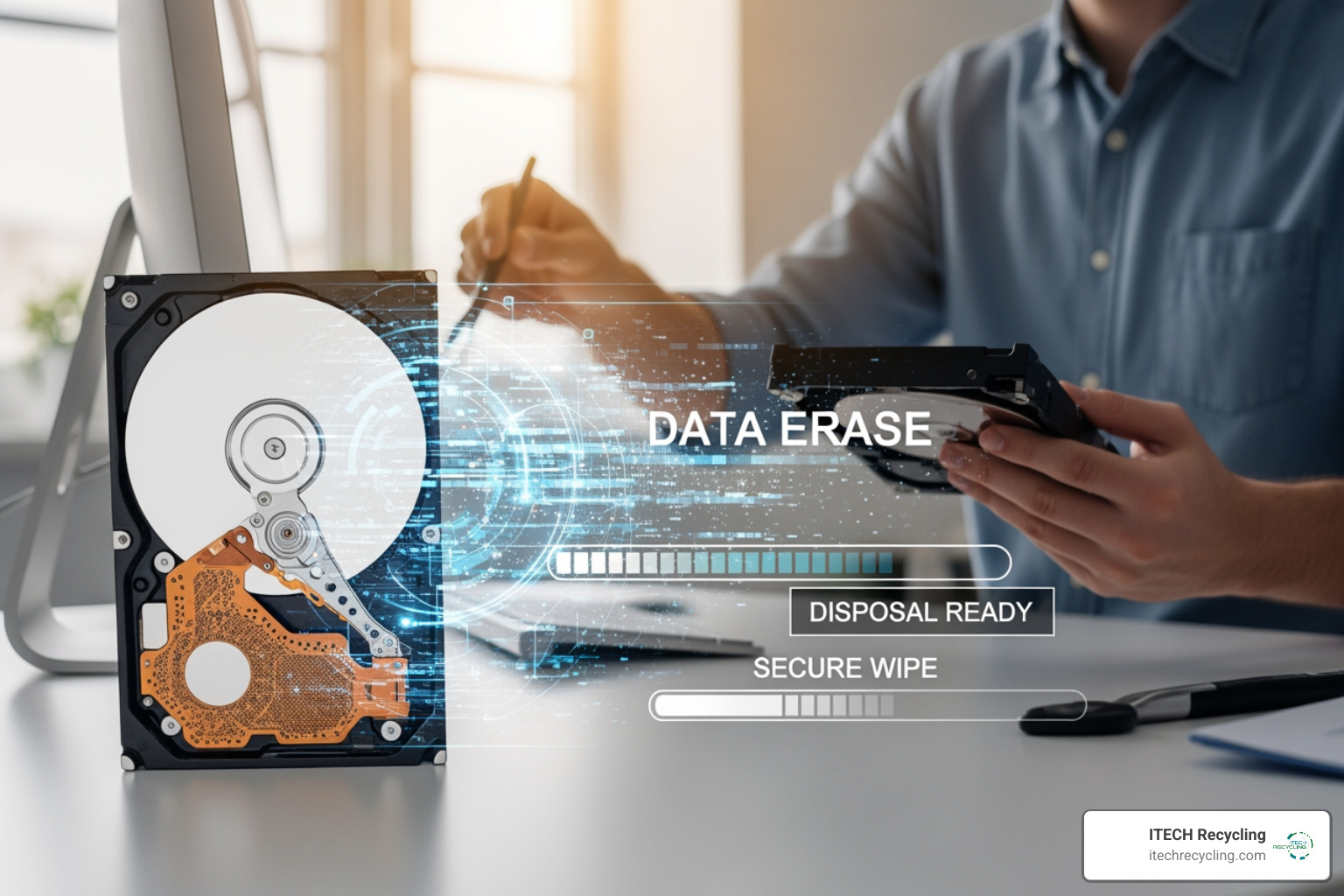
Software wiping works by writing new, meaningless data over your old files. Some methods do this once, while others (like the Department of Defense standards) do it multiple times to ensure that even residual magnetic traces are gone.
Using Built-in Windows Tools for Wiping a Hard Drive for Disposal
If you’re using Windows 10 or 11, you don’t necessarily need third-party software for a basic secure wipe. Windows has a built-in feature that is surprisingly effective for most home users.
How to use “Reset this PC” for Secure Wiping:
- Go to Settings > System > Recovery (Windows 11) or Settings > Update & Security > Recovery (Windows 10).
- Click Reset PC or Get Started.
- Select Remove everything. This is crucial; do not choose “Keep my files.”
- Choose Local reinstall or Cloud download.
- CRITICAL STEP: Click on Change settings.
- Switch Clean data? to Yes. Windows will warn you that this will take hours, but this is exactly what you want. It overwrites the sectors instead of just deleting the file table.
- Click Confirm and let it run.
Reputable Third-Party Software for Wiping a Hard Drive for Disposal
For those who want a more robust solution—especially if you’re dealing with sensitive business data in Elgin or Schaumburg—third-party tools offer more control.
- Disk Wipe: A free, portable Windows application that allows you to choose from various overwriting algorithms, including the Peter Gutmann method (35 passes!) and DOD 5220.22-M.
- DBAN (Darik’s Boot and Nuke): The gold standard for traditional Hard Disk Drives (HDDs). You load it onto a USB drive, boot from it, and it wipes the entire drive outside of the operating system. Note: DBAN is not recommended for SSDs.
- Active KillDisk: Offers a free version that complies with international clearing and sanitizing standards.
- Eraser: A great open-source tool for Windows that allows you to schedule wipes or wipe specific folders rather than the whole drive.
Physical Destruction and Advanced Sanitization
While software wiping is great for drives you want to resell or donate, sometimes the drive is broken, or the data is so sensitive that you can’t risk a software failure. This is where we move into physical destruction and advanced sanitization.
SSDs vs. HDDs: A Major Difference
You must know what kind of drive you have. Traditional HDDs store data magnetically on spinning platters. SSDs (Solid State Drives) store data on flash memory chips.
Because SSDs use “wear leveling” (moving data around to ensure the chips wear out evenly), standard software overwriting might miss some data hidden in “over-provisioned” areas of the chip. For SSDs, we recommend using the BIOS Secure Erase function. This sends a voltage spike to all memory cells simultaneously, effectively “flushing” the electrons and resetting the drive to factory defaults.
NIST Guidelines on Media Sanitization
The NIST guidelines on media sanitization are the “bible” for data security. They categorize sanitization into three levels:
- Clear: Software-based overwriting (good for reuse within an organization).
- Purge: More advanced methods like Secure Erase or Degaussing (good for disposal).
- Destroy: Physical destruction (the only 100% guarantee).
Degaussing: The Magnet Myth
Can you use a strong magnet to erase your drive? For modern drives, the answer is mostly no. Modern HDDs are highly shielded against magnetic interference. While a professional-grade degausser (which costs thousands of dollars) can scramble an HDD, it does absolutely nothing to an SSD because SSDs aren’t magnetic.
The “Nuclear” DIY Options
If you’re at home in Aurora or Joliet and want to make sure your data is gone before tossing a dead drive in the recycling bin:
- The Hammer: Removing the drive and smashing the internal platters (for HDDs) or the memory chips (for SSDs) is effective, though messy and potentially dangerous. Wear eye protection!
- The Drill: Drilling several holes completely through the drive casing and the platters/chips inside is a classic DIY method.
However, for businesses in Chicago, DIY destruction doesn’t provide a Certificate of Destruction, which is often required for audits.
Frequently Asked Questions about Secure Data Removal
What is the difference between formatting and wiping?
Formatting is like erasing the table of contents of a book. The chapters (your data) are still there, but the “index” is gone. A “Quick Format” takes seconds because it only clears the index. A “Full Format” in newer versions of Windows does a single pass of zeros, which is better, but still not as secure as a dedicated wipe. Wiping ensures every single bit of the drive is overwritten multiple times.
Can I use a magnet to erase my modern hard drive?
As mentioned, a household magnet won’t do much. You’d need a neodymium magnet the size of a brick to even stand a chance, and even then, forensic experts might be able to recover data from the platters. For SSDs, magnets are completely useless.
When should I hire a professional data destruction service?
You should consider professional services if:
- You have a large volume of drives (e.g., a data center decommissioning in Franklin Park).
- You require a legal paper trail (Certificate of Destruction) for HIPAA or GDPR compliance.
- The drives are non-functional and cannot be wiped via software.
- You want to ensure the materials are recycled sustainably.
Conclusion
Wiping a hard drive for disposal is a critical final step in the lifecycle of your technology. Whether you’re a student in Bloomington or a corporate executive in a Chicago skyscraper, your data is your most valuable asset—and your biggest liability.
By following the steps in this guide—backing up your data, using the right software tools, and understanding the physical requirements of your specific drive—you can protect yourself from identity theft and legal trouble.
At ITECH Recycling, we specialize in making this process stress-free. We provide responsible electronics recycling across the Chicago area, including Wood Dale, Bensenville, and Mundelein. Our focus is on data security and sustainability, ensuring that while your data is destroyed, the raw materials like copper and gold are recovered and kept out of landfills.
If you’re overwhelmed by the thought of DIY wiping, or if you’re a business that needs certified security, we’re here to help. Check out our Hard Drive Shredding and Data Destruction services to see how we can give you total peace of mind. Don’t let your old data come back to haunt you—wipe it right the first time!
 Prev
Prev